

Running Ollama with Open WebUI on your own Linux VPS gives you a private AI chat interface and a local model API with flat monthly costs and zero third-party data sharing. This guide deploys Ollama 0.40.18 and Open WebUI v0.13.4 on an Ubuntu 24.04 VPS using Docker Compose and Caddy for automatic HTTPS — keeping port 11434 isolated on the private Docker network and locking public signups right after creating your admin account.
On this page
- What to expect on a CPU-only VPS
- Secure architecture with Docker and Caddy
- Prerequisites
- Create the project folder and `.env`
- Create the `Caddyfile`
- Create `docker-compose.yml`
- Start the stack and pull your first model
- Create the admin account and disable public signups
- Connecting n8n or external scripts safely
- Backup and upgrades
- Common issues when running Ollama and Open WebUI on a VPS
- Next steps
Every image tag, environment variable and healthcheck below matches the upstream v0.40.18 Ollama release (envconfig/config.go and Dockerfile) and v0.13.4 Open WebUI release (docker-compose.yaml, backend/open_webui/env.py, config.py and Dockerfile).
What to expect on a CPU-only VPS
Before deploying, set realistic expectations: on a standard Linux VPS (vCPUs and RAM, no dedicated GPU), Ollama runs inference on CPU using system memory bandwidth.
That works well for:
- A private assistant for yourself or a small team (summarization, drafting, SQL, code review and internal RAG over uploaded documents in Open WebUI).
- Background automations with n8n or Evolution API (message classification, structured JSON extraction, ticket triage and local embeddings).
- Prompt prototyping and testing with predictable monthly billing and zero per-token API bills.
A CPU-only VPS is not built for dozens of concurrent chat users or 32B/70B models. The table below summarizes practical 4-bit quantized (Q4_K_M, Ollama's default) model sizes by VPS memory:
| VPS tier (CPU) | Comfortable models (Q4) |
Recommended workload |
|---|---|---|
| 4 GB RAM · 2 vCPU | 1B to 3B models (llama3.2:3b) |
Quick tests, embeddings (nomic-embed-text) and light triage |
| 8 GB RAM · 4 vCPU | 3B to 4B models (qwen3:4b, gemma3:4b) |
Daily single-user chat in Open WebUI with safe memory headroom |
| 12 GB RAM · 6 vCPU | 7B to 8B models (qwen2.5:7b, llama3.1:8b) |
Production Open WebUI, RAG and n8n workflows without OOM kills |
| 24 GB RAM · 8 vCPU | 14B models or 8B with larger context windows | Small team usage, longer context and other stacks on the host |
Secure architecture with Docker and Caddy
The most common mistake when self-hosting Ollama on a VPS is publishing port 11434 on 0.0.0.0. Ollama has no built-in authentication: anyone scanning your IP can pull arbitrary models, fill your disk and peg your CPU at 100%.
In this setup, only Caddy binds ports 80 and 443 on the host. Open WebUI (8080) and Ollama (11434) communicate exclusively over the private Docker Compose network:
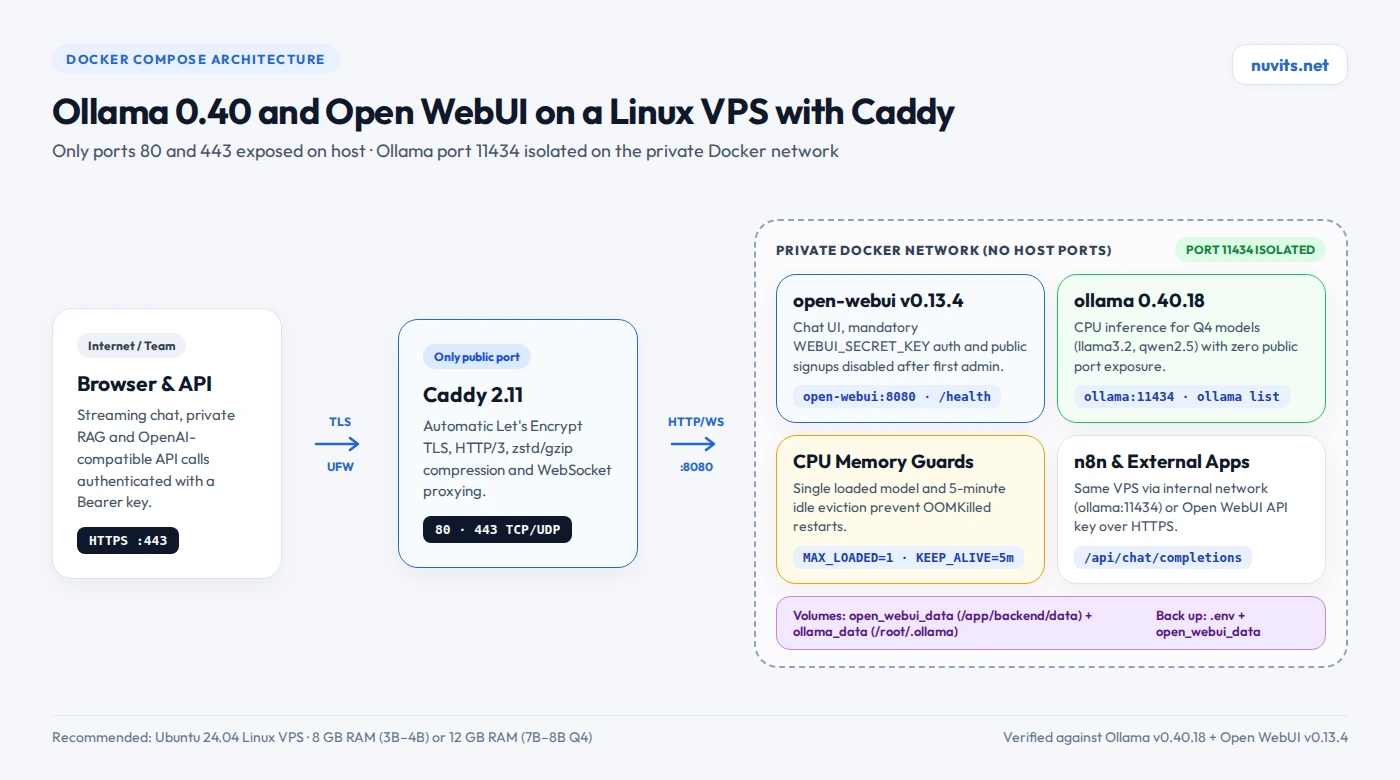
Four details prevent the usual first-day pitfalls:
WEBUI_SECRET_KEYis required in Open WebUIv0.13.4: the upstream sampledocker-compose.yamlleaves it blank, butenv.pyexplicitly aborts startup whenWEBUI_AUTH=TrueandWEBUI_SECRET_KEYis empty.- Ollama healthcheck via
ollama list: theollama/ollama:0.40.18Ubuntu 24.04 image does not bundlecurlorwget. Runningollama listchecks directly whether the daemon on11434is ready. OLLAMA_MAX_LOADED_MODELS=1andOLLAMA_NUM_PARALLEL=1: stop Ollama from keeping two models resident in RAM at once or multiplying KV cache memory under concurrent CPU requests.- Signups disabled after initial setup:
ENABLE_SIGNUP=truestays on only while you create the first account (automatically promoted to Admin), then switches tofalse.
Prerequisites
- An Ubuntu 24.04 64-bit VPS with Docker Engine and the Compose plugin (
v2.20+), ideally 12 GB of RAM for 7B/8B models. - Firewall
ufwallowing only22/tcp,80/tcpand443(TCP/UDP). - A subdomain with a DNS
Arecord pointing to the VPS IPv4 (ia.example.comin the examples below). - A valid email address for Caddy's ACME TLS certificate.
If Docker and ufw are not configured yet, start with the server setup in How to install n8n with Docker on a VPS.
Create the project folder and .env
Create the stack directory and generate a strong random WEBUI_SECRET_KEY:
mkdir -p ~/ollama-webui && cd ~/ollama-webui
openssl rand -hex 32
Create .env with your domain, email and generated secret key:
OLLAMA_VERSION=0.40.18
OPEN_WEBUI_VERSION=v0.13.4
CADDY_VERSION=2.11

WEBUI_DOMAIN=ia.example.com
[email protected]
WEBUI_URL=https://ia.example.com

WEBUI_SECRET_KEY=paste-your-64-char-hex-key-here
ENABLE_SIGNUP=true
DEFAULT_USER_ROLE=pending

OLLAMA_KEEP_ALIVE=5m
OLLAMA_MAX_LOADED_MODELS=1
OLLAMA_NUM_PARALLEL=1
OLLAMA_CONTEXT_LENGTH=4096
Lock down file permissions on .env:
chmod 600 .envWhat each Ollama guard in .env controls:
OLLAMA_KEEP_ALIVE=5m: unloads the active model after 5 minutes of inactivity, freeing RAM for the rest of the server.OLLAMA_MAX_LOADED_MODELS=1: forces Ollama to evict the previous model before loading a new one from the Open WebUI picker.OLLAMA_NUM_PARALLEL=1: prevents parallel CPU generations from multiplying KV cache usage.OLLAMA_CONTEXT_LENGTH=4096: caps default context memory so large prompts do not trigger sudden RAM spikes (raise to8192on 12 GB or 24 GB tiers if needed).
Create the Caddyfile
Caddy provisions and renews the TLS certificate automatically and proxies both streamed chat responses and WebSockets to Open WebUI:
{
	email {$ACME_EMAIL}
}

{$WEBUI_DOMAIN} {
	encode zstd gzip
	reverse_proxy open-webui:8080
}
Create docker-compose.yml
This Compose file pins tested tags, keeps ollama and open-webui off the host network interface and waits for Ollama to become healthy before starting the UI:
services:
  caddy:
    image: caddy:${CADDY_VERSION}
    restart: unless-stopped
    ports:
      - "80:80"
      - "443:443"
      - "443:443/udp"
    environment:
      - WEBUI_DOMAIN=${WEBUI_DOMAIN}
      - ACME_EMAIL=${ACME_EMAIL}
    volumes:
      - ./Caddyfile:/etc/caddy/Caddyfile:ro
      - caddy_data:/data
      - caddy_config:/config
    depends_on:
      open-webui:
        condition: service_healthy

  ollama:
    image: ollama/ollama:${OLLAMA_VERSION}
    restart: unless-stopped
    environment:
      - OLLAMA_KEEP_ALIVE=${OLLAMA_KEEP_ALIVE}
      - OLLAMA_MAX_LOADED_MODELS=${OLLAMA_MAX_LOADED_MODELS}
      - OLLAMA_NUM_PARALLEL=${OLLAMA_NUM_PARALLEL}
      - OLLAMA_CONTEXT_LENGTH=${OLLAMA_CONTEXT_LENGTH}
    volumes:
      - ollama_data:/root/.ollama
    healthcheck:
      test: ["CMD", "ollama", "list"]
      interval: 15s
      timeout: 5s
      retries: 10
      start_period: 15s

  open-webui:
    image: ghcr.io/open-webui/open-webui:${OPEN_WEBUI_VERSION}
    restart: unless-stopped
    environment:
      - OLLAMA_BASE_URL=http://ollama:11434
      - WEBUI_SECRET_KEY=${WEBUI_SECRET_KEY}
      - WEBUI_URL=${WEBUI_URL}
      - ENABLE_SIGNUP=${ENABLE_SIGNUP}
      - DEFAULT_USER_ROLE=${DEFAULT_USER_ROLE}
    volumes:
      - open_webui_data:/app/backend/data
    depends_on:
      ollama:
        condition: service_healthy

volumes:
  caddy_data:
  caddy_config:
  ollama_data:
open_webui_data:Start the stack and pull your first model
Validate the Compose configuration and bring the stack up:
cd ~/ollama-webui
sudo docker compose config --quiet
sudo docker compose up -d
sudo docker compose ps
The first Open WebUI startup takes 1 to 2 minutes while it initializes its SQLite database and assets inside /app/backend/data. Wait until both ollama and open-webui show Up (healthy).
Now pull a model that fits your VPS memory directly inside the Ollama container. For a fast smoke test on any 4 GB+ server, start with llama3.2:3b; on 12 GB+ servers, pull a 7B/8B model such as qwen2.5:7b:
sudo docker compose exec ollama ollama pull llama3.2:3bOn a 12 GB+ VPS:
sudo docker compose exec ollama ollama pull qwen2.5:7bVerify the downloaded model and run a quick CLI check before opening the browser:
sudo docker compose exec ollama ollama list
sudo docker compose exec ollama ollama run llama3.2:3b "Reply in one short sentence: is the server working?"
Create the admin account and disable public signups
Check the HTTPS health endpoint through Caddy:
curl -fsS https://ia.example.com/healthYou should get {"status":true}. Next:
- Open
https://ia.example.comin your browser and register the first user — Open WebUI automatically grants Admin privileges to the first account. - Confirm the downloaded model appears in the top selector and streams a reply.
- Return to the VPS terminal, flip
ENABLE_SIGNUP=falsein.envand recreate onlyopen-webui:
sed -i 's/^ENABLE_SIGNUP=true$/ENABLE_SIGNUP=false/' .env
sudo docker compose up -d open-webui
Verify that no internal port leaked onto public host interfaces:
sudo ss -tulpn | grep -E ':(80|443|8080|11434)\b'Only ports 80 and 443 should be listening publicly.
Connecting n8n or external scripts safely
To call your local models from workflows or another server without opening port 11434:
- On the same VPS: attach n8n to the same Docker network and point n8n's Ollama credential to
http://ollama:11434. - From another host: create an API Key inside Open WebUI (Settings → Account → API Keys) and call the OpenAI-compatible endpoint
https://ia.example.com/api/chat/completionswithAuthorization: Bearer <your-key>. Every external request stays encrypted and authenticated through Caddy and Open WebUI.
Backup and upgrades
What to back up
You do not need to back up ollama_data (multi-gigabyte model weights can be re-downloaded with ollama pull). Back up .env (which holds WEBUI_SECRET_KEY) and open_webui_data (users, chats, prompts and RAG collections):
cd ~/ollama-webui
(umask 077 && cp .env open-webui-env-$(date +%F))
sudo docker compose stop open-webui
sudo docker run --rm -v ollama-webui_open_webui_data:/data:ro -v "$PWD":/backup alpine tar czf /backup/open-webui-data-$(date +%F).tar.gz -C /data .
sudo docker compose start open-webui
Copy both files off the VPS regularly.
Upgrading Ollama and Open WebUI
- Take the backup above and review the upstream release notes for Ollama and Open WebUI.
- Update
OLLAMA_VERSIONorOPEN_WEBUI_VERSIONin.env. - Pull the updated images and recreate the containers:
cd ~/ollama-webui
sudo docker compose pull
sudo docker compose up -d
sudo docker compose ps
Common issues when running Ollama and Open WebUI on a VPS
- Open WebUI crash-loops on startup: check
sudo docker compose logs --tail=50 open-webui. Onv0.13.4, an emptyWEBUI_SECRET_KEYcauses startup to abort wheneverWEBUI_AUTHis enabled. - No models show up in Open WebUI: verify
OLLAMA_BASE_URL=http://ollama:11434matches the Compose service name and runsudo docker compose exec ollama ollama listto confirm at least one model is pulled. - Replies stall mid-stream or container exits with
OOMKilled: the model exceeds available VPS RAM. Checksudo docker inspect --format '{{.State.OOMKilled}}' ollama-webui-ollama-1, lowerOLLAMA_CONTEXT_LENGTHto2048or switch to a smaller model (3bon 4–8 GB;7b/8bon 12 GB+). - First reply takes 15 to 30 seconds: expected when Ollama had unloaded the model after
OLLAMA_KEEP_ALIVE=5m. On a dedicated VPS you can raiseOLLAMA_KEEP_ALIVE=30mor-1, while keepingOLLAMA_MAX_LOADED_MODELS=1.
Next steps
- Need to budget memory across AI and automation containers on one server? Read How much RAM and vCPU for n8n, Evolution API and Coolify.
- Comparing billing and hardware before spinning up your server? Check How to choose a VPS billed in BRL with Pix in Brazil.
- Explore Linux VPS tiers with room for local models in Docker VPS and Linux VPS.