

This guide deploys self-hosted Supabase on an Ubuntu 24.04 VPS using the official Docker Compose setup, with Envoy as the API gateway, Caddy in front for automatic HTTPS, and PostgreSQL ports locked to localhost. Only ports 80 and 443 face the public internet; Studio requires HTTP Basic Auth at the proxy, and direct database access goes through an SSH tunnel.
On this page
- What you need
- How the stack and reverse proxy fit together
- Fetch the Supabase docker folder
- Generate keys and secrets with the official scripts
- Configure domain, Auth and SMTP in `.env`
- Enable Caddy and lock database ports to localhost
- Start the stack and verify health and ports
- Verify HTTPS, Studio, API and PostgreSQL access
- Backups and safe upgrades
- Common first-boot issues
- Next steps
The versions and files below follow the upstream supabase/supabase repository, which ships PostgreSQL 17 (supabase/postgres:17.6.1.136), envoyproxy/envoy:v1.39.6 as the default API gateway, supabase/supavisor:2.9.13 for connection pooling, and the built-in docker-compose.caddy.yml override.
What you need
- An Ubuntu 24.04 64-bit VPS with Docker Engine, the Compose plugin (
v2.20+),git,openssland SSH access withsudo. - A domain or subdomain with an
Arecord pointing to the VPS public IPv4 address (supabase.example.comin the examples below). - An SMTP server (such as Resend, Postmark or SES) so Auth can deliver signup confirmation and password recovery emails.
Without the optional analytics/log stack, the default setup plus Caddy runs 12 containers: PostgreSQL 17, Supavisor, Envoy (api-gw), Studio, GoTrue (Auth), PostgREST, Realtime, Storage, imgproxy, postgres-meta, Edge Functions and Caddy.
| Environment | vCPU | RAM | SSD | Notes |
|---|---|---|---|---|
| Testing & prototypes | 2 vCPU | 4 GB | 40 GB | Bare minimum to boot the stack with light traffic |
| Small to medium production | 4 vCPU | 8 GB | 100 GB | Recommended for Postgres, Realtime, Storage and cache headroom |
| Multiple apps or heavy traffic | 6–8 vCPU | 12–24 GB | 200+ GB | Headroom for concurrent pools, pgvector and local backups |
If Docker is not installed on the VPS yet, follow the official apt repository steps in How to install n8n with Docker on a VPS.
How the stack and reverse proxy fit together
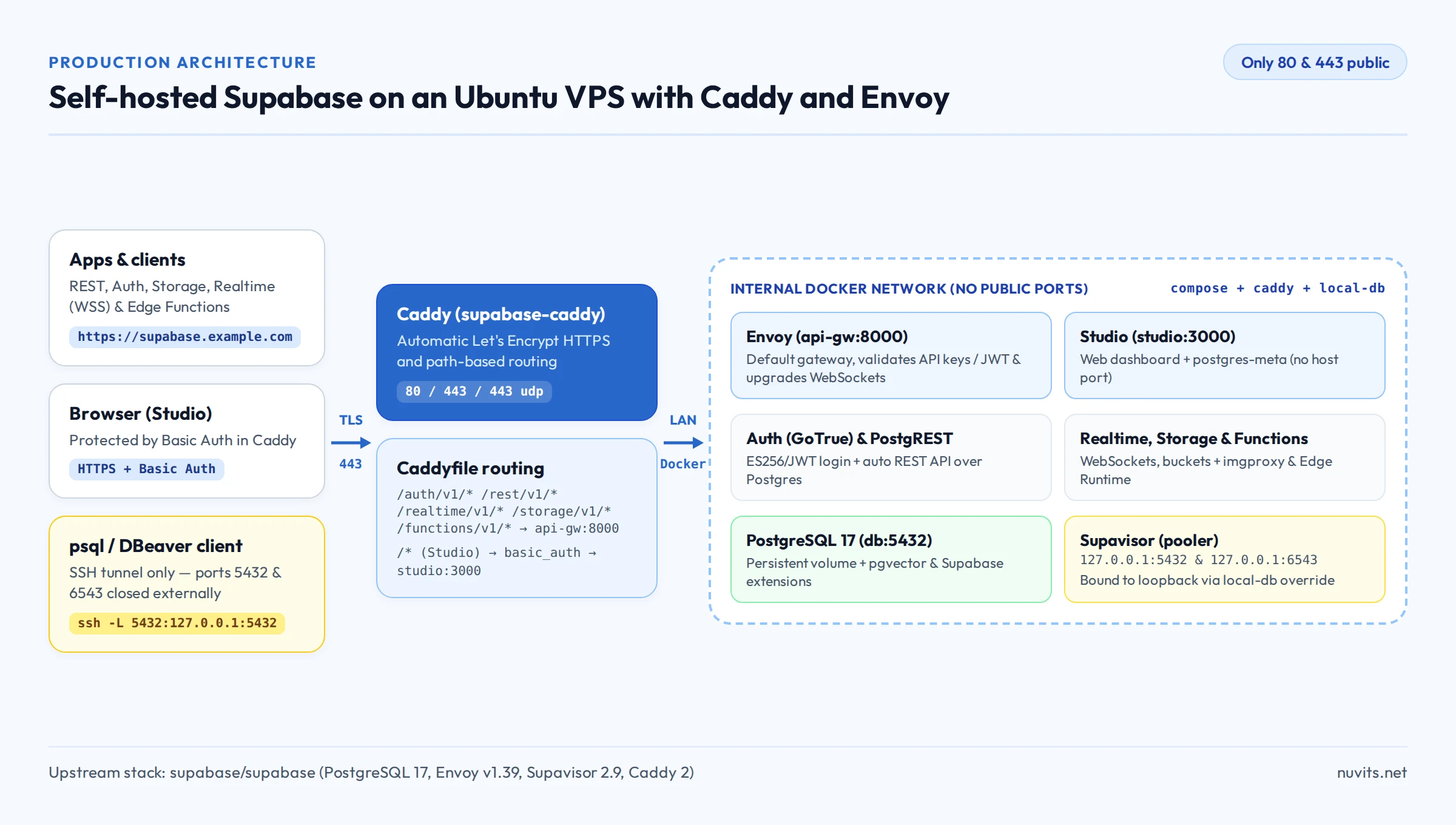
In the current Supabase Docker setup, Envoy replaced Kong as the default API gateway (api-gw), keeping both envoy and kong as internal Docker network aliases. Once you enable docker-compose.caddy.yml, Caddy becomes the only HTTP/HTTPS entry point on ports 80 and 443:
- API paths (
/auth/v1/*,/rest/v1/*,/graphql/v1,/realtime/v1/*,/storage/v1/*,/functions/v1/*,/mcp,/sso/*) route toapi-gw:8000, where Envoy validates API keys and upgrades Realtime WebSockets. - Every other path routes to Studio (
studio:3000), guarded bybasic_authgenerated on startup by Caddy from your.envcredentials.
Fetch the Supabase docker folder
Skip cloning the entire monorepo history. Use a shallow sparse clone and copy just the docker directory into ~/supabase:
git clone --depth 1 --filter=blob:none --sparse https://github.com/supabase/supabase.git /tmp/supabase-repo
git -C /tmp/supabase-repo sparse-checkout set docker
cp -r /tmp/supabase-repo/docker ~/supabase
rm -rf /tmp/supabase-repo
cd ~/supabase
cp .env.example .env
chmod 600 .env
~/supabase contains docker-compose.yml, the official overrides (docker-compose.caddy.yml, docker-compose.s3.yml, docker-compose.logs.yml), the run.sh helper, volumes/ and the key generation scripts under utils/.
Generate keys and secrets with the official scripts
Never boot Supabase with the placeholder secrets from .env.example. The repository provides two scripts that generate strong secrets and write them straight into .env.
1. Stack secrets and legacy JWT keys
Run generate-keys.sh with --update-env. It creates random POSTGRES_PASSWORD and DASHBOARD_PASSWORD values, JWT_SECRET, signed ANON_KEY and SERVICE_ROLE_KEY tokens, and all internal encryption keys required by Realtime, Supavisor, postgres-meta and Storage (SECRET_KEY_BASE, REALTIME_DB_ENC_KEY, VAULT_ENC_KEY, PG_META_CRYPTO_KEY, S3_PROTOCOL_ACCESS_KEY_ID and S3_PROTOCOL_ACCESS_KEY_SECRET):
sh utils/generate-keys.sh --update-env2. Asymmetric ES256 keys and opaque API keys
Next, generate the EC P-256 signing key pair (JWT_KEYS and JWT_JWKS) plus the opaque SUPABASE_PUBLISHABLE_KEY and SUPABASE_SECRET_KEY values used by current Supabase client SDKs:
sh utils/add-new-auth-keys.sh --update-envThis script uses local Node.js >= 16 when available, or automatically falls back to a temporary Docker container.
Configure domain, Auth and SMTP in .env
Open .env and update the public URLs, pooler tenant ID, Studio username and SMTP settings. Replace supabase.example.com with your real domain and app.example.com with your application's frontend URL:
# Public domain and Auth URLs
PROXY_DOMAIN=supabase.example.com
SUPABASE_PUBLIC_URL=https://supabase.example.com
API_EXTERNAL_URL=https://supabase.example.com/auth/v1
SITE_URL=https://app.example.com
ADDITIONAL_REDIRECT_URLS=https://app.example.com/**

# Unique Supavisor tenant identifier (appended to the Postgres username)
POOLER_TENANT_ID=nuvits-prod-01

# Studio Basic Auth username (password was generated by generate-keys.sh)
DASHBOARD_USERNAME=admin-supabase

# Production SMTP for signup confirmation and password resets
[email protected]
SMTP_HOST=smtp.example.com
SMTP_PORT=587
SMTP_USER=smtp-user
SMTP_PASS=smtp-password
SMTP_SENDER_NAME=My App
Double-check two details before saving:
- Keep
ENABLE_EMAIL_AUTOCONFIRM=falsein production so new signups must verify their email address. Only flip it totruebriefly if you are testing without SMTP before inviting real users. - Do not leave
POOLER_TENANT_IDset toyour-tenant-id. Pick a simple lowercase alphanumeric slug with hyphens.
Enable Caddy and lock database ports to localhost
First, add the official Caddy override to COMPOSE_FILE in .env using Supabase's run.sh helper:
sh run.sh config add caddyThis updates COMPOSE_FILE to docker-compose.yml:docker-compose.caddy.yml. The Caddy override clears api-gw's host port with ports: !reset [] and launches supabase-caddy on 80, 443 and 443/udp, loading volumes/proxy/caddy/Caddyfile.
Now create a second override in the same directory so supavisor binds 5432 and 6543 only to loopback:
services:
  supavisor:
    ports: !reset
      - "127.0.0.1:${POSTGRES_PORT}:5432"
      - "127.0.0.1:${POOLER_PROXY_PORT_TRANSACTION}:6543"
Register the override with run.sh and validate the merged Compose file:
sh run.sh config add local-db
sh run.sh config
sudo docker compose config --quiet
sh run.sh config should list all three files in this exact order:
COMPOSE_FILE=docker-compose.yml:docker-compose.caddy.yml:docker-compose.local-db.yml
compose files:
  docker-compose.yml
  docker-compose.caddy.yml
  docker-compose.local-db.yml
If docker compose config --quiet exits cleanly with no output, the YAML syntax and !reset overrides are valid.
Start the stack and verify health and ports
Pull all container images and start the stack, waiting for healthchecks:
sudo sh run.sh pull
sudo sh run.sh start
run.sh start runs docker compose up -d --wait. On first boot, PostgreSQL initializes internal schemas (auth, storage, realtime, _supabase) and Caddy obtains a Let's Encrypt TLS certificate — expect one to two minutes.
Check container status:
sudo sh run.sh statusAll services should show Up (healthy) (or Up for Caddy and Edge Runtime). Next, inspect listening sockets on the host:
sudo ss -tulpn | grep -E ':(80|443|5432|6543|8000)\b'You should see:
:80and:443listening on0.0.0.0(or*) via Caddy.127.0.0.1:5432and127.0.0.1:6543bound exclusively to loopback by Supavisor.- No port
8000or3000published on the host.
If ufw is not enabled yet, allow only SSH, HTTP and HTTPS:
sudo ufw allow OpenSSH
sudo ufw allow 80/tcp
sudo ufw allow 443/tcp
sudo ufw allow 443/udp
sudo ufw enable
Verify HTTPS, Studio, API and PostgreSQL access
1. Confirm Studio requires Basic Auth
From your local workstation (outside the VPS), request the root URL without credentials:
curl -I https://supabase.example.com/Caddy should respond with HTTP/2 401 and www-authenticate: Basic. Open https://supabase.example.com in your browser and sign in with DASHBOARD_USERNAME and DASHBOARD_PASSWORD from .env (you can display them on the VPS with sh run.sh secrets).
2. Test the REST API through Envoy
Pass your SUPABASE_PUBLISHABLE_KEY (or ANON_KEY) to /rest/v1/:
curl -fsS https://supabase.example.com/rest/v1/ \
  -H "apikey: YOUR_SUPABASE_PUBLISHABLE_KEY" | head -c 300
An OpenAPI JSON response confirms TLS, Caddy, Envoy and PostgREST are wired end to end.
3. Connect to PostgreSQL securely over an SSH tunnel
Because Supavisor is bound to 127.0.0.1, local tools like psql, DBeaver, Drizzle or Prisma connect through an SSH tunnel:
ssh -N -L 5432:127.0.0.1:5432 -L 6543:127.0.0.1:6543 user@VPS_IPIn a second terminal, connect using Supavisor's tenant-scoped username (postgres.<POOLER_TENANT_ID>):
# Session mode (port 5432 — best for migrations and psql)
psql "postgresql://postgres.nuvits-prod-01:[email protected]:5432/postgres"

# Transaction mode (port 6543 — best for serverless apps and high connection counts)
psql "postgresql://postgres.nuvits-prod-01:[email protected]:6543/postgres"
Applications running in Docker on the same VPS (such as a backend API or an n8n workflow) can connect over the internal Docker network to db:5432 or supavisor:6543 without exposing external ports.
Backups and safe upgrades
A complete self-hosted Supabase backup covers three things:
- Logical PostgreSQL dump: preserves roles, schemas (
public,auth,storage), RLS policies and tables. - Storage files under
~/supabase/volumes/storage/(or your S3 bucket if you usedocker-compose.s3.yml). - The
.envfile, stored encrypted off the VPS.
Create a compressed full database dump with a single command:
mkdir -p ~/backups/supabase
sudo docker exec supabase-db pg_dumpall -U postgres | gzip > ~/backups/supabase/supabase-$(date +%F).sql.gz
Sync both the .sql.gz dump and volumes/storage/ off-site daily (for example with rclone, following the same pattern shown in Automatic n8n backups off the VPS).
Before upgrading, run a fresh backup, update the docker/ files from supabase/supabase while preserving .env and docker-compose.local-db.yml, then pull and restart:
cd ~/supabase
sudo sh run.sh pull
sudo sh run.sh startCommon first-boot issues
- Studio loads blank or logs CORS / Mixed Content errors:
SUPABASE_PUBLIC_URLorAPI_EXTERNAL_URLis still set tohttp://localhost:8000. Update both tohttps://supabase.example.com(with/auth/v1forAPI_EXTERNAL_URL) and runsudo sh run.sh recreate studio auth api-gw. Tenant or user not foundinpsql: when connecting through Supavisor (5432or6543), the username must include the tenant suffix (postgres.<POOLER_TENANT_ID>), not plainpostgres.- Caddy fails to issue a TLS certificate: verify the
Arecord forPROXY_DOMAINresolves to the VPS IPv4 (dig +short supabase.example.com) and ports 80 and 443 are reachable through the firewall. - Realtime drops connections after a few seconds: if you placed another proxy in front of Caddy, make sure WebSocket upgrades are enabled and avoid unnecessary double TLS termination.
Next steps
- To see why
docker-compose.local-db.ymlmatters on any Ubuntu VPS running Docker andufw, read The Docker port stays open with ufw. - If you want to connect automations to your Supabase database or Auth webhooks, check How to install n8n with Docker on a VPS.
- Still picking a server for this stack? Compare plans on Docker VPS and Linux VPS.